Canvas Outcomes
Outcomes is a Canvas feature that allows you to assess student learning in your courses. Outcomes
are automatically added to your Canvas shell(s) through Insights. All CLOs are created
and vetted through the Curriculum and Instruction process. The CLOs need to be added
to a rubric and attached to a quiz, assignment, or discussion post to assess student
learning. Faculty can use the Learning Mastery Gradebook to show students their progress
on assessments. Canvas Workflow for Faculty
Items to do prior to developing rubrics using CLOs:
- Publish your Canvas shell.
- Ensure your CLOs are available to you by clicking on the Outcomes tab found in the left navigation in Canvas. If
you see the "thinking Panda", please email Yvette Ybarra at yybarra@glendale.edu for help.
- If you do not know what your CLOs are visit the C&I webpage and go to Course Outlines of Record. If you would like to update CLOs contact your C&I representative.
- Once you have decided on your assessment tool, you can now create your rubric. Our
policy at Glendale College is that all CLOs must be assessed only once.
Insights
Insights is an instrcutor tool only, all assessment(s) take place using Canvas Outcomes.
With Insights, faculty can align assessment activities and execute them in Canvas.
Faculty have their own dashboards to track progress, analyze data, and collaborate
on course improvements. We will have Institutional and Program outcome data always
at-hand, with rich demographic and contextual information. The goal is to make continuous
improvement truly continuous. Insights Workflow for Faculty Users
To access Insights use the left navigation in Canvas and click on Insights. If you cannot access Insights, below are three possible issues:
- You are using another browser other than Chrome. Chrome is highly suggested for Insights.
- Your user privledge has not been set. If you get this message "user has no associated academic subjects" email your department to Yvette Ybarra at yybarra@glendale.edu
- Your Canvas shell is set to Public. If this is the case you will see an astronaunt
floating around the moon. To correct this please follow these steps:
- Use the left navigation in Canvas click on Settings.
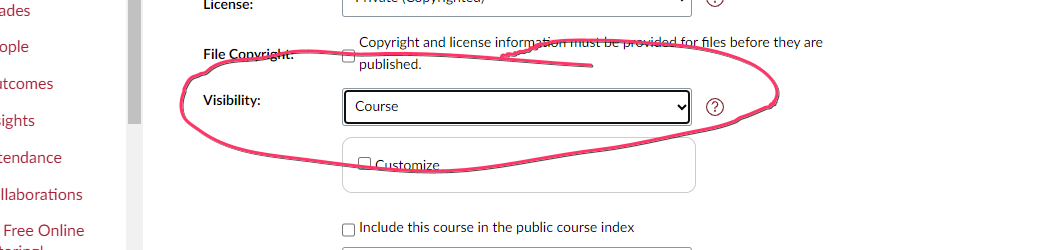
- This will take you to Course Details. Scroll down until you find Visability.
- Change the setting from Public to Course.

-
- Refresh Insights
- Do to FERPA concerns all Canvas shells must be puplished to Course.
To help faculty a Canvas/Insights Material Training Shell was develped. To view the
material or you need additional help please email Yvette Ybarra at yybarra@glendale.edu.